Stop Pairing the Computer.
Use Optical.
When a computer will not reliably pair to a hearing-aid streamer, a USB-to-TOSLINK adapter can turn the problem into ordinary wired audio.
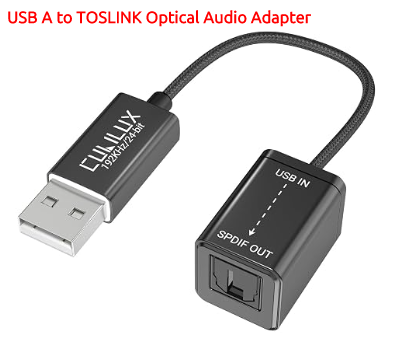
The simple fix
Instead of trying to make the computer pair by Bluetooth to the streamer, give the computer an optical audio output.
A small USB-to-TOSLINK adapter plugs into the computer and appears to the computer as a normal USB speaker or sound device.
The optical cable then runs from the adapter to the TOSLINK input on the hearing-aid streamer or Auracast transmitter.
Search Google for USB A to TOSLINK Optical Audio Adapter . You can usually find them from Amazon, Walmart, eBay, Newegg, Best Buy, and directly from Cubilux. Buy from whichever vendor you prefer. The important thing is that the computer sees it as a standard USB audio device and the streamer sees a standard optical input.
Why this works
Bluetooth pairing makes two devices negotiate with each other. That can fail, become confused, or break after updates.
Optical audio is different. It is just a one-way audio feed.
The streamer simply receives digital audio through its optical input. It does not know whether that optical signal came from a TV, a computer, a Raspberry Pi, a CD player, or anything else.
What the computer sees
The computer treats the USB adapter as a plain audio output device.
In Windows, macOS, or Linux, it usually appears in the sound settings as a USB audio device. Select it the same way you would select speakers or headphones.
- No Bluetooth pairing to the streamer.
- No special hearing-aid software required.
- No streamer driver required.
- No need for the computer to understand Auracast.
What the streamer sees
The streamer sees only an incoming optical signal.
That is the beauty of the arrangement. The streamer does not care what generated the signal. It only needs valid digital audio on its TOSLINK input.
Once the optical cable is connected, the streamer can do its normal job: send that audio to hearing aids, earbuds, or other receivers.
When to use this approach
This is useful when:
- A computer will not pair reliably with a streamer.
- Bluetooth pairing worked once and then stopped working.
- You want a dependable audio feed from a PC to a streamer.
- You want the streamer to behave like it is connected to a TV optical output.
- You want less software and fewer moving parts.
It is especially useful for home hearing-aid streaming setups where reliability matters more than clever pairing tricks.
Setup checklist
- Plug the USB-to-TOSLINK adapter into the computer.
- Connect a TOSLINK optical cable from the adapter to the streamer.
- Set the computer sound output to the USB audio device.
- Set the streamer input to optical, if it has an input selector.
- Start with the computer volume at a moderate level, then adjust as needed.
The larger lesson
Sometimes the best way to solve a Bluetooth problem is to stop using Bluetooth for that part of the chain.
Use a wire for the source connection, then let the streamer handle the wireless part.
That keeps each device doing something simple.